

How to Fix Common npm install Errors
ERESOLVE, EACCES, ENOENT, ETARGET, network failures, corrupted caches: the npm ERR! codes you actually hit, what each one means, why it happens, and the exact command that fixes it.
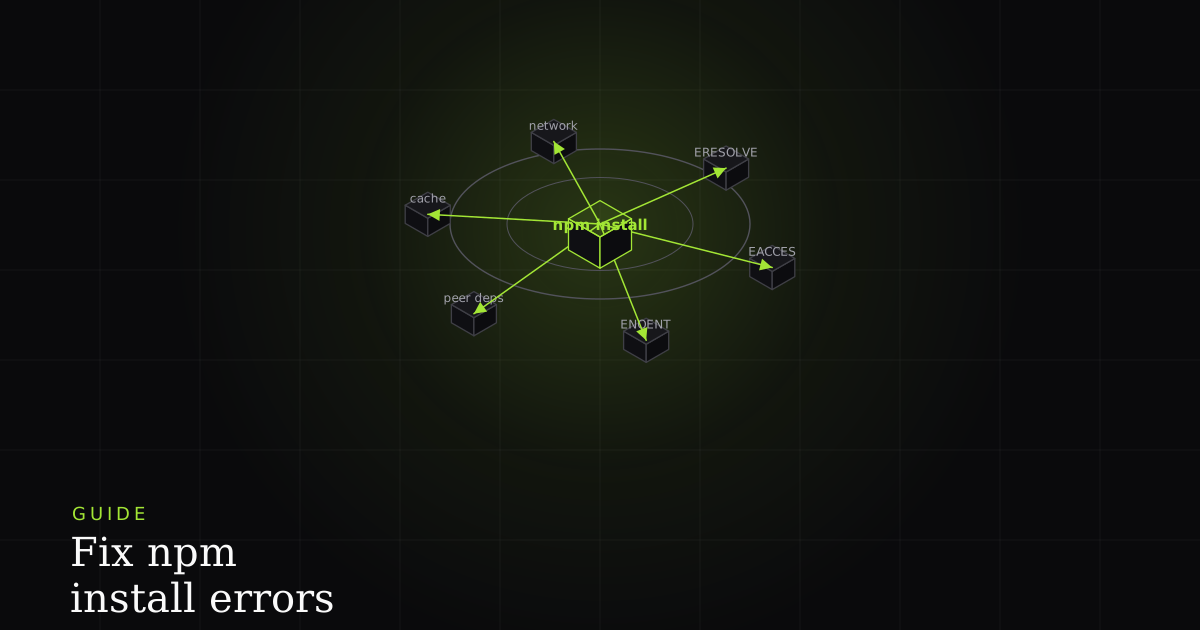
Almost every npm install failure prints a line starting with npm ERR! and a short code: ERESOLVE, EACCES, ENOENT, and a handful of others. Those codes are the whole game: each one points at a distinct class of problem with a distinct fix, and once you can read them you stop guessing. This is a field guide to the ones you'll actually meet, in roughly the order they show up in modern projects.
Before anything: a triage checklist
Most install errors are one of a small number of things, and a few reflexes clear the majority of them before you need to understand the specific code:
- Read the whole error, not just the last line. npm prints the actual cause several lines up; the final line is often just a pointer to the log file.
- Check your Node and npm versions. A package that needs Node 20 will fail in confusing ways on Node 16.
- Delete
node_modulesand the lockfile, then reinstall. This alone fixes a surprising share of "it worked yesterday" failures. - Clear the cache if you see integrity or checksum errors.
# What am I even running?
node --version
npm --version

# The nuclear option that fixes most transient failures
rm -rf node_modules package-lock.json
npm cache clean --force
npm install
ERESOLVE: unable to resolve dependency tree
ERESOLVE means npm could not build one dependency tree that satisfies every package's declared requirements. It is almost always a peer dependency conflict: one library declares it needs, for example, React 17, while your app is on React 18. npm 7+ treats this as an error rather than silently installing a possibly-broken tree.
A peer dependency is a package's way of saying "I don't bundle React myself; I expect you to provide a compatible one." That range is declared by the library author, so ERESOLVE is frequently about a library's declared React (or other framework) version range being narrower than reality: the library works fine with React 18, but its author only ever declared peerDependencies: { "react": "^17.0.0" }. A typical error looks like this:
npm ERR! code ERESOLVE
npm ERR! ERESOLVE unable to resolve dependency tree
npm ERR!
npm ERR! While resolving: my-app@1.0.0
npm ERR! Found: react@18.3.1
npm ERR! Could not resolve dependency:
npm ERR! peer react@"^17.0.0" from some-legacy-lib@2.1.0
You have three ways out, in order of preference:
- Fix the actual version. The correct fix: upgrade
some-legacy-libto a version whose peer range includes React 18, or if none exists, decide whether you can move the conflicting package to a version everyone agrees on. This resolves the conflict rather than hiding it. - Install with
--legacy-peer-deps. This ignores peer conflicts and installs anyway (npm 6 behaviour). Appropriate when the peer range is merely too strict and you've confirmed the library actually works with your version. It's the mild override. - Install with
--force. This goes further and will happily install broken or duplicated trees. Risky: reserve it for genuine emergencies, and expect to clean up afterward.
# Preferred: fix the version so the tree resolves honestly
npm install some-legacy-lib@latest

# Milder override — the peer range is just too strict
npm install --legacy-peer-deps

# Last resort — can produce a broken tree
npm install --forceEACCES: permission denied
EACCES means npm tried to write somewhere your user account doesn't own, almost always a global install path such as /usr/local/lib/node_modules. The tempting fix is sudo npm install -g, and it's the wrong one: it creates root-owned files and folders that generate more permission errors later, and it runs package install scripts as root, which is a genuine security risk.
The real fix is to stop needing elevated permissions at all. The cleanest route is a version manager like nvm, which installs Node and all global packages under your home directory, where you already have write access. Alternatively, point npm's global prefix at a folder you own.
# Option A — use nvm so everything lives under your home dir
curl -o- https://raw.githubusercontent.com/nvm-sh/nvm/v0.39.7/install.sh | bash
nvm install --lts
nvm use --lts

# Option B — move npm's global prefix somewhere you own
mkdir -p ~/.npm-global
npm config set prefix ~/.npm-global
# then add ~/.npm-global/bin to your PATH
ENOENT: no such file or directory
ENOENT is Node's "error: no entity": a file or directory npm expected to exist simply isn't there. On install it usually means one of three things:
- You're in the wrong directory. There's no
package.jsonwhere you ran the command.npm installlooks for it in the current folder; if you're one level too high, you getENOENT: no such file or directory, open '.../package.json'. - The
package.jsonis genuinely missing in a freshly cloned repo or a subfolder that isn't a package. - A script or dependency references a file that doesn't exist, a
postinstallhook pointing at a moved file, for instance.
The same class of missing-path problem at runtime is the Cannot find module error, which is worth reading alongside this if your install succeeds but node then can't load something.
# Confirm you're where the package.json lives
pwd
ls package.json

# If it's genuinely missing and this should be a package, create one
npm init -y
ETARGET: no matching version found
ETARGET (often printed as notarget) means you asked for a specific version of a package that doesn't exist on the registry. Common triggers: a typo in the version string, pinning to a version that was never published, or a version range in package.json that no published release satisfies. The error names both the package and the version you requested, which makes it one of the easier codes to diagnose: check what's actually published.
# See what versions actually exist before you pin one
npm view react versions --json

# Install a version you've confirmed exists
npm install react@18.3.1
Network and registry errors
Codes like ETIMEDOUT, ECONNREFUSED, ECONNRESET, and ENOTFOUND mean npm couldn't reach the registry to download packages. The cause is rarely npm itself. It's the network in between. The usual suspects are a flaky connection, a corporate proxy that npm doesn't know about, or a registry misconfiguration (a private registry URL that's down, or a stale .npmrc pointing somewhere it shouldn't).
# Which registry is npm actually talking to?
npm config get registry

# Reset to the public registry if a stale private one was set
npm config set registry https://registry.npmjs.org/

# Behind a corporate proxy? Tell npm about it
npm config set proxy http://proxy.company.com:8080
npm config set https-proxy http://proxy.company.com:8080
Corrupted cache and lockfile mismatches
npm caches every package tarball it downloads and verifies each one with an integrity hash. When a cached file is corrupted, or when package-lock.json disagrees with package.json, installs fail with integrity/checksum errors or with npm ci refusing to run because the lockfile is out of sync. The fix is a clean reset: clear the cache, delete the installed tree and the lockfile, and let npm rebuild both from scratch.
# Clear the cache (verify first if you want to see what's wrong)
npm cache verify
npm cache clean --force

# Rebuild the tree and lockfile from package.json
rm -rf node_modules package-lock.json
npm installWhen it only breaks in CI
The most maddening install errors are the ones that only happen in continuous integration: green on your laptop, red on the build server. Almost always it's an environment difference: a different Node version, a different OS, a lockfile that's committed in one state but installed in another, or a cache that's fresh in CI and warm locally. The way to make these reproducible is to capture the exact environment where the failure happened (Node version, OS, and lockfile state) so you can recreate it rather than guess at it.
When a bug only reproduces in someone else's environment, guessing is slow. Install the free BugMojo extension to capture the exact session (replay, console, and network) so a reproduction comes with you instead of a screenshot.
Install the free extensionFrequently asked questions
Frequently asked questions
Sources
- npm install: official CLI reference for how npm resolves and installs the dependency tree, npm Docs (2026)
- npm config: configuration reference covering legacy-peer-deps, registry, and prefix settings, npm Docs (2026)
- npm cache: reference for inspecting, verifying, and clearing the local package cache, npm Docs (2026)
- Node.js modules: how Node resolves and loads packages from node_modules at runtime, Node.js (2026)
Get bug-tracking insights, weekly.
Engineering deep-dives, QA playbooks, and honest tool comparisons. No spam. Unsubscribe in one click.