

How to Integrate BugMojo with Slack
Connect BugMojo to Slack so every captured bug posts to a channel with the key context and a deep link. Here is what syncs, the exact setup steps, and a real Block Kit payload.
What this integration does
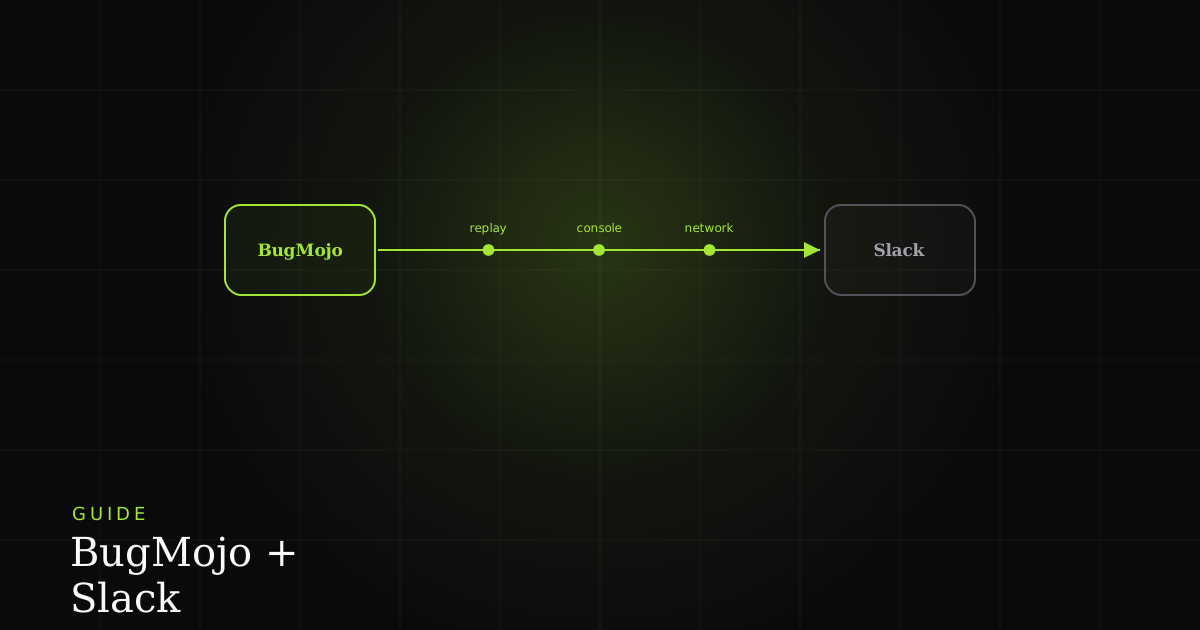
The BugMojo + Slack integration pushes each captured bug into a Slack channel as a rich card carrying the title, project, severity, reporter, status, and a link back to the full capture. Your team sees new bugs the instant they are reported, without leaving the tool where they already talk.
Bug reports are only useful if the right people notice them. Email buries them, dashboards need someone to go looking, and a bug that sits unseen for a day is a bug that ships. Slack is where most engineering teams already live, so routing captures there closes the gap between "a user hit a problem" and "an engineer is looking at it." BugMojo sends a compact, skimmable card the moment a capture is created; the heavy artifacts (the rrweb DOM replay, console logs, and network trace) stay inside BugMojo behind your authentication, and the Slack card links straight to them.
How the pieces fit: incoming webhook vs. Slack app
There are two ways to get messages into Slack, and it is worth understanding the difference before you start. The simplest is an incoming webhook: Slack gives you a unique URL of the form https://hooks.slack.com/services/…, and any HTTPS POST of JSON to that URL appears as a message in the channel the webhook is bound to. Per Slack's incoming-webhooks docs, the URL itself is the credential (there is no separate token to manage), and it maps to exactly one channel. The second option is a full Slack app with a bot token and the chat:write scope, which you need only for richer two-way behaviour such as replies syncing back or buttons that call your backend.
For "new bugs appear in a channel," the webhook route is almost always the right starting point: it is faster to set up, needs no app-review or OAuth distribution, and, because each URL is tied to one channel, it doubles as your routing mechanism. The incoming-webhook scope even shows the installing user a channel picker during setup, so non-admins can point alerts at their own team channel.
| Feature | Incoming Webhook | Slack App (Bot) | Email / Digest |
|---|---|---|---|
| Typical setup time | ~5 min | ~15 min | ~2 min |
| Rich Block Kit cards | ✓ | ✓ | No |
| Post to a specific channel | ✓ | ✓ | No |
| Route by project / severity | One URL per channel | Rules in-app | Limited |
| Replies sync back to the bug | No | ✓ | No |
| Needs OAuth scopes / review | No | ✓ | No |
Before you start
Make sure you have:
- A BugMojo account with admin access, since Settings → Integrations is admin-only.
- Permission to add a Slack app to your workspace (or an admin who can approve it). Some workspaces restrict app installs.
- The Slack channel you want alerts to land in already created, for example
#bugs,#qa, or#incidents. - About 10 minutes. Interruptions mid-flow tend to force an OAuth retry, so it is smoother done in one sitting.
Step-by-step setup
Step 1: Create a Slack app and enable Incoming Webhooks
Go to api.slack.com/apps and click Create New App → From scratch. Name it (for example "BugMojo") and pick your workspace. In the app's settings, open Features → Incoming Webhooks and toggle Activate Incoming Webhooks to On. If your organisation prefers, BugMojo also ships a pre-built Slack app you can add from Settings → Integrations → Slack → Add to Slack, which runs the same OAuth flow for you.
Step 2: Get the webhook URL
Click Add New Webhook to Workspace, choose the destination channel in the picker, and click Allow. Slack generates a URL like https://hooks.slack.com/services/T00000000/B00000000/XXXX…. Copy it. This is what BugMojo will POST to. You can add more than one webhook to the same app; each one is bound to a single channel, which is exactly how you will route different bugs later.
Step 3: Connect it in BugMojo
In BugMojo, open Settings → Integrations → Slack and paste the webhook URL. Give the connection a label (for example "#bugs: default") so it is easy to identify when you have several. Save, and BugMojo verifies the endpoint by sending a test payload.
Step 4: Choose what to send, then test
By default BugMojo can post on every new capture. If your team gets too many pings, restrict it to specific severities (say CRITICAL and HIGH), projects, or labels. Then run one live test: capture a low-priority bug and confirm the card appears in Slack within a few seconds. If it does not, jump to the troubleshooting section below before you change anything else.
# Illustrative: the shape of the JSON BugMojo posts to an Incoming Webhook.
# Block Kit lets you build a structured card instead of a plain string.
curl -X POST -H 'Content-type: application/json' \
  --data '{
    "blocks": [
      { "type": "header",
        "text": { "type": "plain_text", "text": "New bug: Checkout button unresponsive" } },
      { "type": "section",
        "fields": [
          { "type": "mrkdwn", "text": "*Project:*\nWeb App" },
          { "type": "mrkdwn", "text": "*Severity:*\nCritical" },
          { "type": "mrkdwn", "text": "*Reporter:*\nPriya S." },
          { "type": "mrkdwn", "text": "*Status:*\nOpen" }
        ] },
      { "type": "section",
        "text": { "type": "mrkdwn", "text": "Console: `TypeError: cart is undefined` \u00b7 2 failed XHRs captured" } },
      { "type": "actions",
        "elements": [
          { "type": "button",
            "text": { "type": "plain_text", "text": "Open session replay" },
            "url": "https://www.bugmojo.com/b/BUG-1042",
            "style": "primary" }
        ] },
      { "type": "context",
        "elements": [ { "type": "mrkdwn", "text": "Captured via BugMojo extension \u00b7 client-side PII redaction applied" } ] }
    ]
  }' \
  https://hooks.slack.com/services/T00000000/B00000000/XXXXXXXXXXXXXXXXXXXX
That payload uses Block Kit, Slack's layout framework. A message is a blocks array: a header block renders large bold text, section blocks hold mrkdwn or plain_text (the fields variant lays out a two-column key/value grid), actions blocks carry buttons, and a context block shows small footnote-style metadata. A single message can contain up to 50 blocks, and each section's text is capped at 3,000 characters: plenty for a bug summary, and a reason to link to the full capture rather than dump everything inline.
Routing projects and severities to different channels
Since every webhook URL maps to one channel, routing is just a matter of holding several URLs and picking one per bug. Create a webhook for each destination, connect each in BugMojo, and set the filter that decides which captures use it. A common layout looks like this:
Severity   Project      ->  Channel        Webhook          Extra
--------   -------      --   -------        -------          -----
CRITICAL   Payments     ->  #incidents     hook: B_INCID    @here on-call
HIGH       Web App      ->  #bugs-web      hook: B_WEB
*          Mobile       ->  #bugs-mobile   hook: B_MOBILE
(anything else)         ->  #bugs          hook: B_DEFAULT
This keeps the signal high in each channel: on-call engineers only see payments incidents, the web team sees web bugs, and everything else falls through to a general backlog channel nobody has to babysit. If you outgrow one-URL-per-channel routing (say you want conditional rules or interactive triage buttons), that is the point at which the full Slack-app-with-bot-token route starts to pay off.
Troubleshooting
If cards still are not arriving and none of the above fires, confirm the connection is healthy under Settings → Integrations → Slack → Status, double-check you copied the whole URL, and check that the destination channel still exists and the app has not been uninstalled. Hooklistener and Hookdeck's guide to Slack webhooks are useful references for inspecting the raw request/response when you need to see exactly what Slack received.
Best practices for noise control
The fastest way to make a Slack integration useless is to fire on everything. A channel that pings 200 times a day gets muted, and a muted channel is no better than email. Keep the signal sharp:
- Filter by severity. Send
CRITICALandHIGHin real time; rollLOWandMEDIUMinto a scheduled digest or a low-traffic channel. - Split channels by team. One busy
#bugsfirehose helps no one; per-project channels mean each card is relevant to everyone who sees it. - Reserve @here / @channel for true incidents. Mentions should mean "drop what you are doing." Overuse trains people to ignore them.
- Keep the card skimmable. Title, severity, project, one line of error context, and a link. The detail lives in BugMojo, not the message.
- Thread the discussion. Keep follow-up in the message thread so the channel stays a clean list of incoming bugs.
Caveats: when Slack isn't the right fit
Slack notifications are a great front door for bugs, but they are not a system of record. Messages scroll away, threads get buried, and there is no status field: a card in #bugs looks identical whether the bug is open or fixed. Treat Slack as the alert layer and keep BugMojo (or your issue tracker) as the source of truth for state, assignment, and history. If your team lives in an issue tracker rather than chat, a Linear, GitHub Issues, or Jira integration may deliver more value than Slack. And if you need genuinely interactive triage (reassigning, closing, or commenting from inside Slack), a one-way incoming webhook will not get you there; that is when the extra effort of a full bot app is justified.
Privacy and security
For compliance-sensitive teams this separation matters: bug metadata can live in your existing, audit-logged Slack workspace while sensitive capture data stays on BugMojo, behind your own authentication. The webhook URL is the one secret to guard here, so keep it out of source control and rotate it if it is ever exposed.
Next steps
- Try BugMojo free: no credit card, a few minutes to set up.
- Explore other integrations: Linear, GitHub Issues, Jira, Cursor, and Claude Code.
- Read the MCP guide: connect AI coding agents directly to your bug tracker.
Install the free BugMojo extension, capture a replay plus console and network trace in one click, and have it posted to your team's Slack channel automatically.
Install the extensionFrequently asked questions
Frequently asked questions
Sources
- Sending messages using incoming webhooks, Slack (2026)
- Block Kit reference, Slack (2026)
- Rate limits for Slack APIs, Slack (2026)
- incoming-webhook scope, Slack (2026)
- Guide to Slack Webhooks: Features and Best Practices, Hookdeck (2026)
- BugMojo integrations documentation, BugMojo (2026)
Get bug-tracking insights, weekly.
Engineering deep-dives, QA playbooks, and honest tool comparisons. No spam. Unsubscribe in one click.