

How to Integrate BugMojo with Cursor
Point Cursor's AI agent at BugMojo's MCP server and it can pull a bug's full reproduction (the rrweb replay, console errors, and network failures) into the editor as context, so it fixes from evidence instead of a vague ticket.
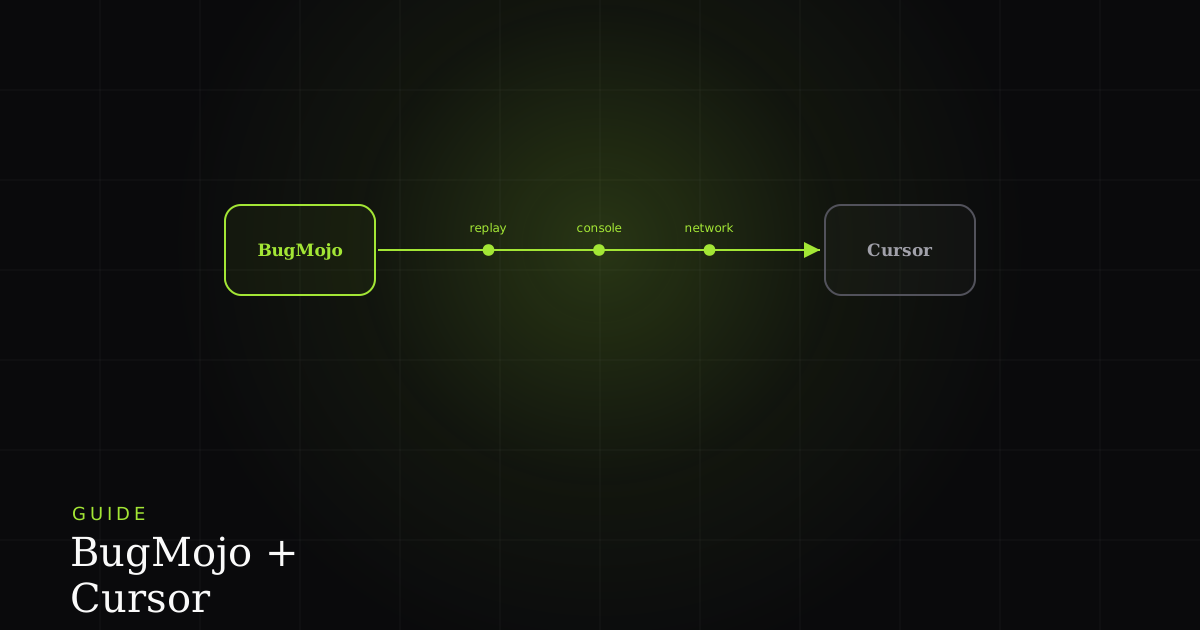
What connecting BugMojo to Cursor actually does
Cursor is an MCP client, so pointing it at BugMojo's MCP server lets its AI agent pull a bug's real reproduction (replay timeline, console errors, and failed network requests) directly into the editor as context. You add one entry to .cursor/mcp.json, and the agent fixes bugs against evidence instead of guesswork.
The gap this closes is context. A normal bug ticket reaches your editor as a sentence: "checkout button does nothing on mobile." To act on it, you (or your AI agent) have to reconstruct what actually happened: which build, which console error, which failed request. BugMojo captures all of that at the moment of the bug via its browser extension (rrweb DOM session recording, console logs, network requests, and screenshots), and exposes it to AI coding agents over MCP. Connecting the two means Cursor's agent reads the evidence directly, rather than asking you to paste it in.
This is a read-into-context relationship, not a two-way ticketing sync. The value is that the model reasons over the true reproduction (the same signals a senior engineer would open the DevTools panel to find) before it proposes a change. That single shift, from description to evidence, is what makes the difference between a plausible-looking patch and one that addresses the failure you actually recorded.
How MCP makes this work
The Model Context Protocol (MCP) is an open standard, introduced by Anthropic in late 2024, for connecting AI applications to external tools and data through one common interface. Its architecture is a host-client-server model. The host is the AI application (here, Cursor), a client inside the host holds a one-to-one connection to each server, and a server exposes capabilities in three standardized primitives: tools (functions the agent can invoke), resources (data it can read), and prompts (reusable templates).
BugMojo runs as one of those servers. When Cursor launches it, the server advertises the tools it offers (the operations for fetching bugs and their captured context), and Cursor's agent can then call them on demand during a conversation. Local servers communicate over stdio (standard input/output between processes on your machine, with no network hop), which is why the typical config just tells Cursor a command to run. Remote servers use HTTP instead. Because both sides speak the same protocol, BugMojo does not need a bespoke Cursor plugin. Any MCP-capable editor can consume the same server.
Before you start
You will need:
- A BugMojo account with at least one captured bug to test against, and permission to create an API key.
- Cursor installed, with MCP support (any recent 2026 build). MCP is configured under Settings → Tools & MCP.
- Node.js available on your PATH if you run the server locally via
npx. - About five minutes. The only fiddly part is deciding where to store your API key.
Step-by-step setup
Step 1: Generate a BugMojo API key
In BugMojo, open Settings → API Keys → Create key and copy the token. Treat it like a password, because it scopes the agent's access to your bugs. Rather than paste it into a config file, export it as an environment variable so it never lands in a file you might commit:
# add to your shell profile (~/.zshrc, ~/.bashrc, etc.)
export BUGMOJO_API_KEY="bm_key_your_token_here"
Step 2: Add the BugMojo MCP server to Cursor
Cursor reads MCP servers from a JSON file. Put it at .cursor/mcp.json in your project root to scope the server to one repo, or at ~/.cursor/mcp.json to make it available in every project. If the same server name appears in both, the project file wins, per TrueFoundry's 2026 Cursor MCP guide. You can also add it through Settings → Tools & MCP → New MCP Server, which writes the same JSON for you.
For a local (stdio) server, give Cursor the command to launch and reference your key with the ${env:NAME} syntax. Cursor resolves it in the command, args, env, url, and headers fields:
{
  "mcpServers": {
    "bugmojo": {
      "command": "npx",
      "args": ["-y", "@bugmojo/mcp-server"],
      "env": {
        "BUGMOJO_API_KEY": "${env:BUGMOJO_API_KEY}"
      }
    }
  }
}If you connect to a remote BugMojo over HTTP instead, Cursor takes a url and an Authorization header rather than a command:
{
  "mcpServers": {
    "bugmojo": {
      "type": "streamable-http",
      "url": "https://www.bugmojo.com/api/mcp",
      "headers": {
        "Authorization": "Bearer ${env:BUGMOJO_API_KEY}"
      }
    }
  }
}
Step 3: Confirm the server is live
Restart Cursor (or reload MCP servers), then open Settings → Tools & MCP. A green dot next to bugmojo means Cursor completed the connection handshake and discovered its tools. A red dot usually means a missing runtime, a bad token, or malformed JSON. Keep an eye on Cursor's ceiling of roughly 40 active tools across all your servers combined. Go over it and the agent can silently lose access to some tools.
Step 4: Ask the agent to pull a bug
Open the agent chat and point it at a real bug, for example: "Fetch BugMojo bug #482, summarize the reproduction from the replay and console, and tell me the likely cause." The agent invokes the BugMojo tool, reads the returned context, and grounds its answer in what was actually recorded. From there you can follow up: "propose a fix and the test that would catch it."
How the agent uses the bug context
Once the reproduction is in context, the agent works the way a careful engineer does. The rrweb replay shows the exact interaction path that triggered the failure. The console log surfaces the thrown error and stack. The network capture reveals whether a request 500'd, timed out, or returned an unexpected shape. With those three signals, the model can point at a specific line rather than pattern-matching against the ticket text. The comparison below shows what changes.
| Feature | Plain ticket in Cursor | BugMojo context via MCP |
|---|---|---|
| What the agent sees | One-line description | Replay, console, network, metadata |
| Reproduction steps | You retype them from memory | Pulled from the recorded session |
| Console errors & stack | No | ✓ |
| Failed network requests | No | ✓ |
| Switching to a browser to investigate | ✓ | No |
| PII in the shared context | Handled manually | Redacted client-side first |
Troubleshooting common setup errors
Security and PII
Two more habits keep the setup safe. First, keep your API key in an environment variable and reference it with ${env:...}. Never commit a real token to .cursor/mcp.json, especially the project-scoped one that lives in your repo. Second, prefer a project-level config for a work codebase so the server is only active where you intend, and scope the key to the least access the agent needs. For compliance-sensitive teams, connecting over the remote HTTP transport keeps capture data inside your own boundary.
Real-world use cases
- Reproduce-then-fix. Ask the agent to read the replay and console for a bug, state the reproduction in its own words, and only then propose a patch, so the fix targets the recorded failure, not a guess.
- Triage during a feature branch. "Which open bugs touch the checkout module?" The agent pulls the relevant captures and summarizes them without you leaving the editor.
- Write the regression test. Because the exact interaction and failed request are in context, the agent can draft a test that reproduces the bug before you accept the fix.
- Explain a flaky report. Feed a hard-to-repro ticket's network capture to the agent to spot the intermittent timeout or race that a static description would hide.
When this isn't the right fit
Be honest about the boundaries. This is a read integration: it brings bug context into Cursor, but it is not a project-management sync. It will not run your sprint board or push status changes across tools by itself. If your editor does not support MCP, none of this applies; MCP is the requirement, not Cursor specifically. Teams with a strict cap on active MCP tools may need to disable other servers to stay under Cursor's ~40-tool limit. And an AI agent still proposes changes on evidence you should review. The integration makes the evidence trustworthy, but it does not remove the human sign-off. For a purely manual workflow where an engineer already has the DevTools open on the failing page, the extra wiring buys little.
Capture a bug once in BugMojo and let Cursor read the replay, console, and network context over MCP.
Try BugMojo freeNext steps
- Connect Claude Code via MCP: the same server, a different AI coding agent.
- Explore other integrations: Slack, Linear, GitHub Issues, Jira, and more.
- Read the MCP architecture overview: understand tools, resources, and prompts in depth.
Frequently asked questions
Frequently asked questions
Sources
- Model Context Protocol: Architecture overview, Model Context Protocol (2026)
- Introducing the Model Context Protocol, Anthropic (2024)
- Model Context Protocol (MCP): Cursor Docs, Cursor (2026)
- MCP Servers in Cursor: Setup, Configuration, and Security, TrueFoundry (2026)
- Cursor auto-review vs YOLO: picking the middle safety tier, Out of Context (2026)
- BugMojo, BugMojo (2026)
Get bug-tracking insights, weekly.
Engineering deep-dives, QA playbooks, and honest tool comparisons. No spam. Unsubscribe in one click.