

Connect BugMojo to VS Code and Windsurf via MCP
Your bug tracker's MCP server is only useful if your coding agent can actually reach it. Here's the exact config, and the one gotcha, for wiring BugMojo into VS Code Copilot and Windsurf Cascade.
Why the config format differs by editor
BugMojo's MCP server is identical everywhere: same URL, same tools, same API key. What changes per editor is only the local wiring: VS Code's Copilot agent mode reads mcp.json with a "servers" root key, while Windsurf's Cascade reads mcp_config.json with a "mcpServers" root key, the same shape Cursor uses.
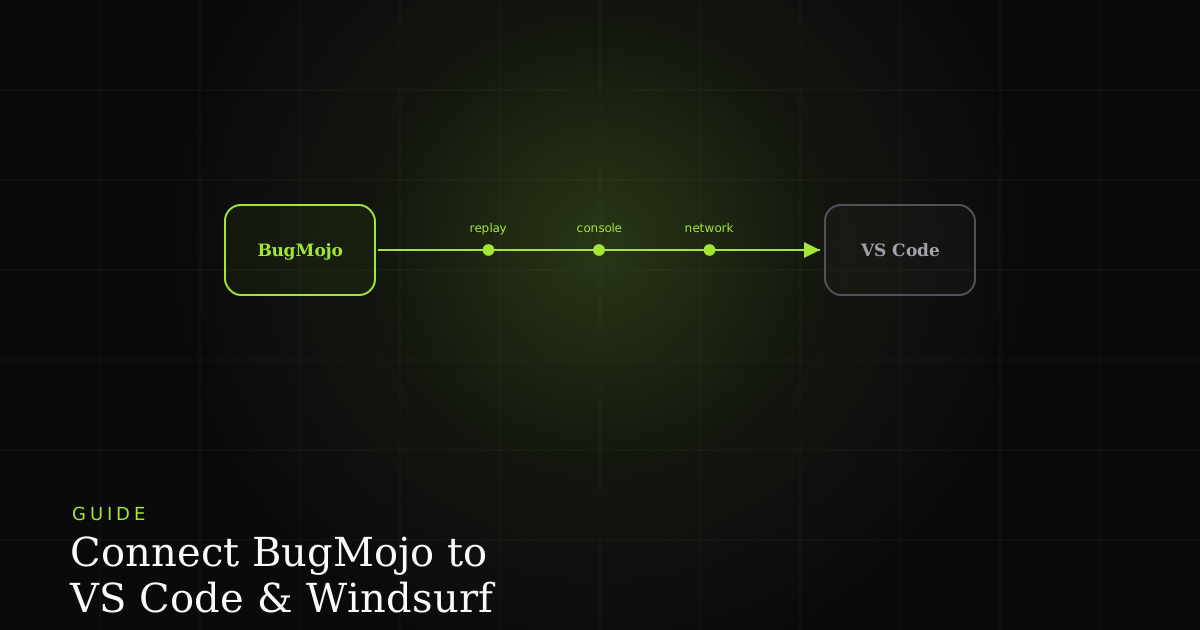
A bug tracker's MCP server is only as useful as the editor sitting on the other end of it. If your coding agent can't reach BugMojo, it can't pull a bug's full reproduction (the session replay, console errors, network waterfall) into the same window where you're about to write the fix. That's the whole point of the integration, so getting the config right matters more than it might look.
The trouble is that Model Context Protocol support landed in each editor on a different timeline, and each vendor picked its own JSON shape. Cursor and Windsurf converged on the same convention early. VS Code added MCP support to Copilot's agent mode later, and its settings schema doesn't match: it uses a different root key entirely. This guide walks through both editors end to end, and calls out that mismatch explicitly, because it's the mistake that trips up almost everyone connecting more than one editor to the same MCP server.
Before you start
You'll need:
- A BugMojo project with an MCP server URL and API key. Find both under Project Settings → MCP Server in the BugMojo dashboard. Every project gets its own scoped credentials.
- VS Code 1.99 or later with GitHub Copilot enabled, or a recent build of Windsurf with Cascade.
- Write access to your user-level or workspace-level editor config. The files below live outside your project's git repo unless you deliberately commit a workspace version.
Connect BugMojo to VS Code
VS Code exposes MCP through GitHub Copilot's agent mode, a distinct mode from inline chat and autocomplete. MCP tools are only visible to the agent when you're actually working in that mode, so the first step is making sure it's turned on before you touch any config file.
Step 1: Turn on agent mode and MCP support
Open the Copilot Chat panel, switch the mode dropdown from Ask or Edit to Agent. If you don't see MCP-related options yet, open Settings and confirm chat.mcp.enabled is turned on. On some builds this ships behind a setting rather than being on by default.
Step 2: Create mcp.json with the "servers" root key
This is the part that catches people coming from Cursor or Windsurf: VS Code does not use a file called settings.json for MCP servers, and it does not use the key "mcpServers". Run MCP: Add Server from the Command Palette, or create the file by hand. It lives at the user level (~/Library/Application Support/Code/User/mcp.json on macOS, an equivalent path on Windows/Linux) or inside .vscode/mcp.json for a workspace-scoped version. Either way, the root key is "servers", not "mcpServers".
{
  "servers": {
    "bugmojo": {
      "type": "http",
      "url": "https://www.bugmojo.com/api/mcp",
      "headers": {
        "Authorization": "Bearer bm_key_xxx"
      }
    }
  }
}
Swap in the exact server URL and API key from your BugMojo project's MCP Server settings. The placeholder above matches BugMojo's URL pattern but your project gets its own scoped key. Save the file; VS Code should pick up the new server without any further action once you reload.
Step 3: Use it from Copilot Chat
Back in the Agent mode chat panel, BugMojo's tools now appear automatically in the tool list. There's no special slash command or prefix required to invoke them. Just ask in plain language: "what open bugs are assigned to me in BugMojo?" or "pull the console errors for bug BM-88." The agent decides on its own when to call BugMojo's tools versus its other available tools.
Connect BugMojo to Windsurf
Windsurf's Cascade agent has native MCP support built in, and its config format matches Cursor's, which is convenient if you already have BugMojo wired into Cursor, since you can copy the server block over almost unchanged. The one thing to know going in: Windsurf does not create its MCP config file for you. You have to create it yourself before Cascade will read it.
Step 1: Create mcp_config.json
Windsurf reads its MCP configuration from mcp_config.json inside the .codeium/windsurf/ directory in your home folder, not inside your project, and not inside a directory named after Windsurf itself. If that folder or file doesn't exist yet, create both. Alternatively, open Cascade's settings panel and use the built-in "Add MCP server" UI, which will generate the file for you in the right place.
Step 2: Add the "mcpServers" entry
Unlike VS Code, Windsurf's root key is "mcpServers", the same shape used by Cursor and Claude Desktop. If you paste a VS Code-style "servers" block in here, Cascade will silently ignore it and no BugMojo tools will show up.
{
  "mcpServers": {
    "bugmojo": {
      "serverUrl": "https://www.bugmojo.com/api/mcp",
      "headers": {
        "Authorization": "Bearer bm_key_xxx"
      }
    }
  }
}
Step 3: Confirm inside Cascade
Reload Windsurf, open the Cascade panel, and check the MCP servers list in settings. BugMojo should show up with a connected status and a count of the tools it exposes. From there, ask Cascade something that requires live BugMojo data, the same way you would in VS Code.
Verify it worked
Whichever editor you're setting up, the fastest check is the same: ask the agent a question only BugMojo can answer, like "list my open bug reports in BugMojo" or "what's the reproduction for the latest critical bug." A real, specific answer (bug titles, IDs, priorities) means the connection is live. A generic or apologetic answer means the agent never called the tool.
Both editors also expose a status indicator you can check without touching chat at all: VS Code shows connected MCP servers and their tool counts in the MCP section of settings, and Windsurf shows the same in Cascade's server list. Green or "connected" plus a nonzero tool count is what you're looking for.
Troubleshooting
"I added the config but no BugMojo tools show up."
Check the root key first. It's the most common cause by a wide margin. "servers" for VS Code's mcp.json, "mcpServers" for Windsurf's mcp_config.json. A file with the wrong key is valid JSON, so nothing will warn you.
"I fixed the config and it's still not working."
Reload or fully restart the editor. Both VS Code and Windsurf read MCP config at startup or on an explicit reload command, so saving the file alone often isn't enough to pick up a new or edited server entry.
"The server shows as disconnected or times out."
Confirm the BugMojo MCP URL is reachable from your network. Corporate firewalls and strict proxies sometimes block outbound connections to unfamiliar hosts. Try curling the URL directly, and check that the API key hasn't been rotated or revoked in BugMojo's project settings.
What this unlocks
Once either editor is connected, the workflow collapses into a single session: ask the agent to pull an open BugMojo bug, and it can retrieve the full reproduction (the rrweb replay reference, console errors, and network requests captured at the moment the bug happened), then propose a fix informed by that actual context, not just the bug title. You get the same capability whether you live in VS Code, Windsurf, or Cursor, because it's the same MCP server underneath; only the two lines of local config differ.
Next steps
- Try BugMojo free: no credit card, 5-minute setup.
- Set up the same MCP server in Cursor: nearly identical config to Windsurf.
- Read how BugMojo's MCP server works: the tools it exposes and how they map to bug data.
Frequently asked questions
Frequently asked questions
Sources
- VS Code docs: adding and managing MCP servers, Visual Studio Code (2026)
- Copilot agent mode reaches general availability with MCP support, Microsoft (Visual Studio Blog) (2025)
- VS Code agent mode blog post confirming MCP tool support, Visual Studio Code (2025-04-07)
- Windsurf's official MCP documentation, Windsurf (2026)
Get bug-tracking insights, weekly.
Engineering deep-dives, QA playbooks, and honest tool comparisons. No spam. Unsubscribe in one click.